
Your first day in Lenviq
Sign in, understand what your role lets you see, and read the dashboard — the three things that make every other guide make sense.
Step 1 of 11 · Everyone
Most systems are learned by clicking until something works. This page is the ten minutes that saves that: what happens when you sign in, why your screen does not look like your colleague's, and what the numbers on the first page actually mean.
Signing in the first time
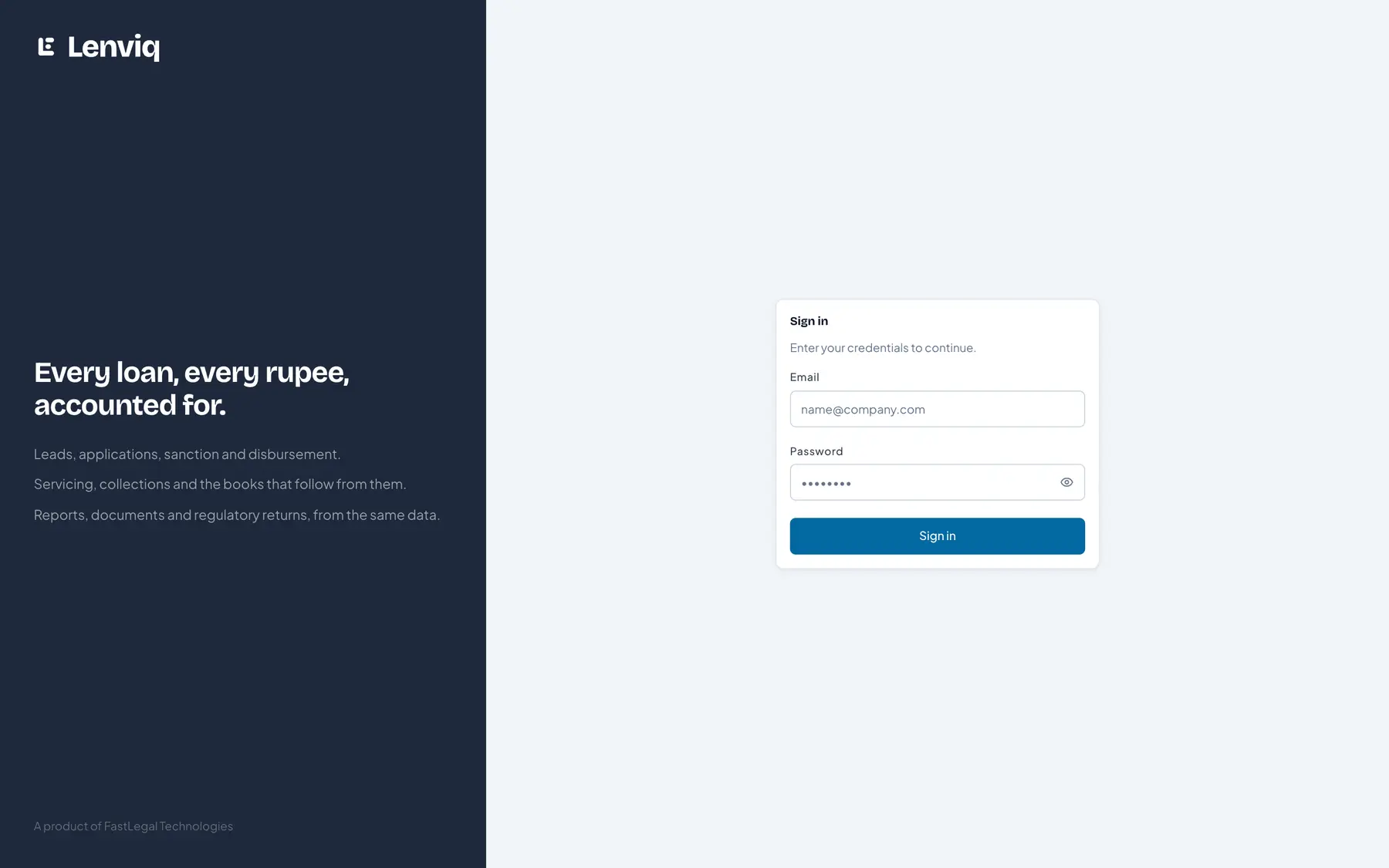
- 1Your work email. The account is created for you; there is no public sign-up.
- 2The password you set from the invitation email. Nobody else can see it, only reset it.
Your administrator creates the account; you do not sign yourself up. You will receive an email with a link to set your own password — the person who created the account never sees it and cannot recover it, only reset it.
If your role handles money or masters, you will also be asked to set up two-factor authentication on that first sign-in. It is a code from an authenticator app on your phone, and it is required by role, not by person — so a teller may need it where a viewer does not. Sessions end on their own after a period of inactivity, and again at a fixed age regardless of activity.
Why your screen is not your colleague's
Two things decide what you see, and they are separate.
Your role decides which screens exist for you. A screen you cannot use is not in your menu at all, rather than present and refusing when you press it. If a colleague describes a page you cannot find, that is the reason — and the fix is a role change by your administrator, not a setting you can reach.
Your scope decides how much of the book those screens show you. It is one of four: your own records, your branch, your region, or the whole tenant. It filters every list, every report and every export, so a branch manager exporting the loan book gets their branch. There is no "all branches" toggle that quietly ignores it.
This is worth understanding early because almost every "the number is wrong" question turns out to be two people with different scopes comparing two correct numbers.
Reading the dashboard
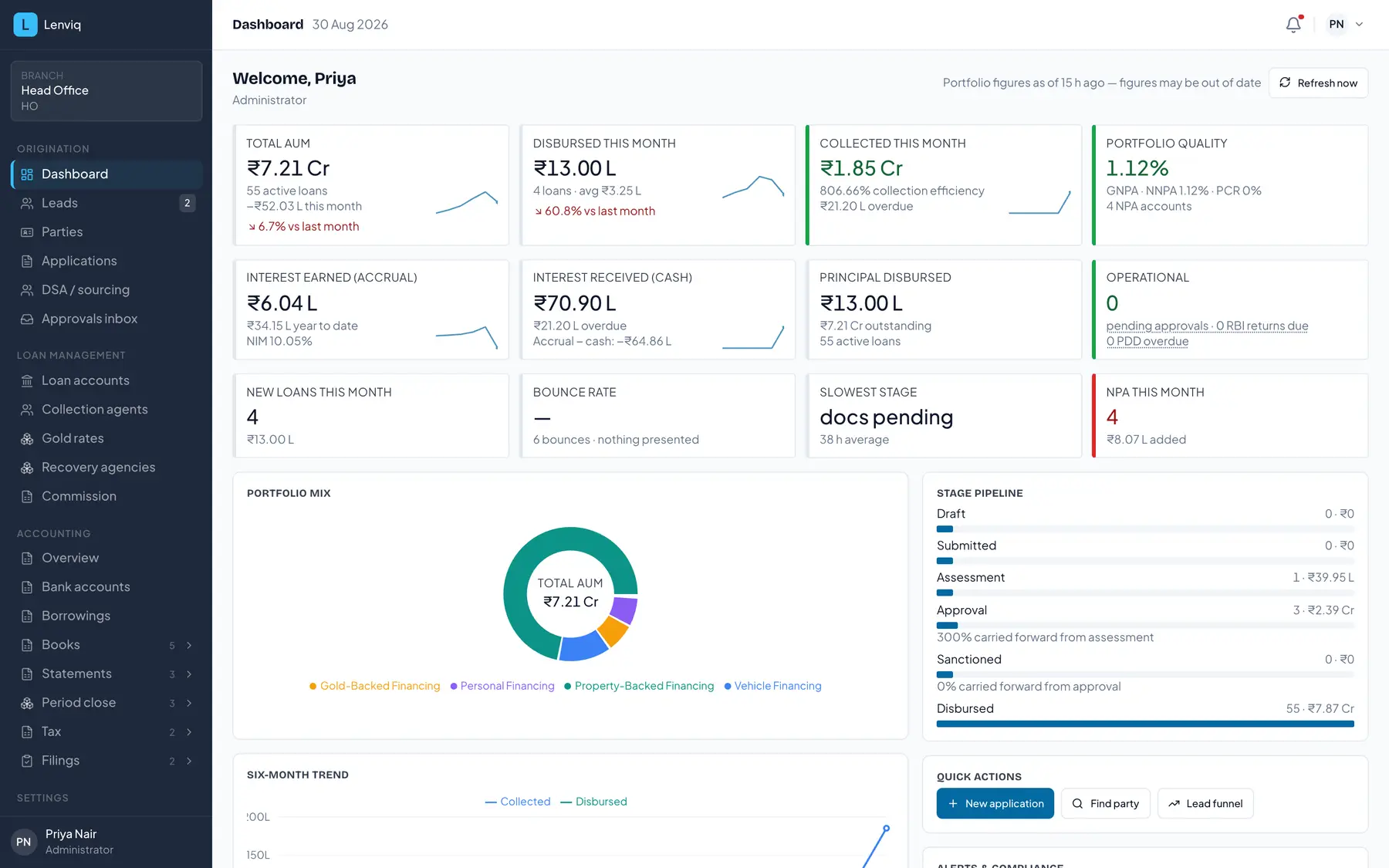
- 1The branch you are scoped to. Every list, report and export on every screen is filtered by it.
- 2When the figures are as at. They are the previous day-end, not this moment — see below.
- 3Asset quality, in the same buckets the regulator asks for: gross and net NPA, and the provision held against them.
- 4What is waiting on somebody: approvals, RBI returns due, and documents still outstanding after disbursement.
- 5Who you are signed in as, and your role. The role decides which of these menu items exist for you at all.
The figures are as at the previous day-end, and the page says so. That is deliberate rather than a limitation: classification, provisioning and every report are computed on a closed business day, so a dashboard showing a live intra-day figure would disagree with the reports beneath it. Two people running the same number at different hours should get the same answer.
What each block answers:
- Portfolio — what is out, and what it is worth today.
- Overdue and asset quality — what is deteriorating, in the same buckets the regulator asks for.
- Collections — what came in against what was demanded.
- Approvals — files waiting on you specifically, if your role approves anything.
Where to go next
The rest of this section follows the work in the order it happens: a product is defined, a lead becomes a customer, the customer becomes a loan file, the loan is disbursed, serviced and collected, and what happened lands in the books and then in a return.
If you are an administrator setting the system up, continue to the next page. If the products are already configured and you are joining an operating branch, skip to taking a lead.
The rules behind this screen are explained on the blog and the terms are defined in the glossary.
From the people who wrote this
Run your lending on Lenviq
Every screenshot on this page is the running product, taken from a demo tenant. A demo walks the same path with your own products and schemes in it.
Lenviq is loan origination, servicing and accounting for NBFCs, built by FastLegal Technologies.